How to log in to NETGEAR Orbi?
To log in to your Orbi router, make sure your device is connected to the Orbi WiFi network.
- Open a web browser and go to orbilogin.com or 192.168.1.1.
- Enter the default username: admin
- Enter the default password: password (case sensitive).
- If the page won’t load, try Incognito Mode or use the Orbi App.
Method 1: Web Browser Login (Best for Settings)
If you need to change your WiFi name, set up port forwarding, or update firmware manually, the web interface is the way to go.
Step-by-Step:
- Connect to WiFi or Ethernet: Your computer or phone must be connected to the Orbi network.
Pro Tip: If you are using an Ethernet cable, plug it into one of the Ethernet LAN ports on the router, not the yellow “Internet” port. - Go to the Login Page:
- In your address bar, type:
http://orbilogin.comorhttp://orbilogin.net - If those don’t work, type the default IP address:
192.168.1.1
- In your address bar, type:
- Enter the default Credentials:
- Username:
admin - Password:
password(This is the default. If you changed it during setup, use your custom password.)
- Username:
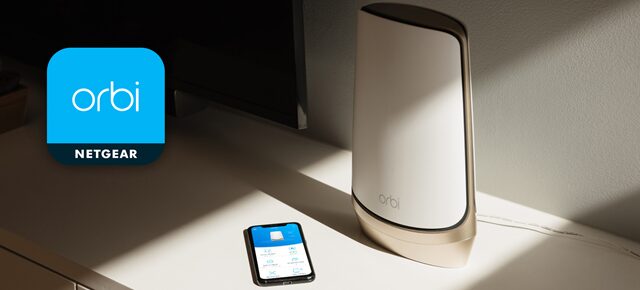
Method 2: The Orbi App (Easiest Option)
For quick checks—like seeing who is on your WiFi or pausing the internet for dinner time—the app is much faster.
- Download the NETGEAR Orbi app from the Apple App Store or Google Play.

- Connect your phone to your Orbi WiFi.
- Launch the app. It will automatically detect your router.
- Log in using your Netgear Account (email address) or tap “Local Login” to use the admin password.
Troubleshooting: Why Can’t I Log In?
This is the most frustrating part. If the standard steps didn’t work, check this table. These are the real fixes that actually work.
| Symptom | Likely Cause | The Fix |
|---|---|---|
| “This site can’t be reached” | Browser Cache or Wrong Network | 1. Open an Incognito/Private window and try 192.168.1.1.2. Disconnect any VPNs you have running. 3. Check if your device jumped to a different WiFi network. |
| “Incorrect Password” | Typo or Changed Password | 1. Remember the default is password (all lowercase).2. If you changed it and forgot it, you have to Factory Reset (see below). |
| Redirects to Netgear.com Support Page | Cache Conflict | Your browser is confusing the local router page with the public internet. Turn off your mobile data (cellular), so your phone is forced to use WiFi, then try again. |
| Orbi LED is Pulsing White | Booting Up | The router is still starting up. Wait until the light turns solid or off before trying to log in. |
How to Factory Reset Orbi?
If you cannot remember your admin password, there is no “password recovery” for local login. You have to wipe it and start fresh.
- Locate the tiny Reset button on the back of the router (usually near the power button).
- While the router is powered ON, use a paperclip to press and hold that button.
- Hold it for about 10–15 seconds until the Power LED blinks Amber (orange).
- Let go. The router will reboot. This takes about 3 to 5 minutes.
- Once it’s back on, the login resets to
admin/password.
Frequently Asked Questions
What if 192.168.1.1 doesn’t work?
If your modem is already using that IP, the Orbi is smart enough to change its own IP to avoid a conflict. Try 10.0.0.1 instead. You can also find the correct IP by checking the “Default Gateway” in your computer’s network settings.
Can I manage my Orbi when I’m not home?
Yes. Open the Orbi App, go to Settings, and enable “Anywhere Access” (sometimes called Remote Management). This links the router to your Netgear Cloud account so you can control it from anywhere.
Is it safe to leave the password as “password”?
No. The first thing you should do after logging in is change the admin password to something secure. This prevents anyone connected to your WiFi from messing with your router settings.